
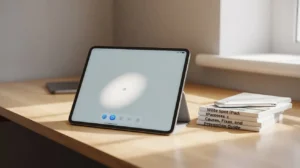
If you’ve ever noticed a strange white spot iPad screen issue, you know how frustrating it can be. At first, it may seem like a small problem. But over time, that bright spot can become distracting, especially when reading, streaming, or working. The good news is, you’re not alone and there are clear reasons why these white spots appear, plus solutions to fix them.
In this guide, we’ll break down the causes, diagnosis steps, easy fixes, professional repair options, and prevention tips. By the end, you’ll understand not only how to deal with the white spot iPad problem but also how to protect your device from future issues.
What Is a White Spot on iPad?
A white spot on an iPad looks like a glowing patch or bright dot on the screen. It usually stands out against dark backgrounds and remains in the same location no matter what app or image you open. Unlike temporary glares or smudges, this spot is embedded in the display.
In most cases, a white spot iPad issue comes from hardware problems like backlight pressure, stuck pixels, or physical screen damage. Rarely, it may be caused by software glitches.
Common Causes of White Spot iPad Issues
Several factors can create a white spot iPad screen problem. Here are the most common causes:
1. Pressure Marks or LCD Damage
When pressure is applied to the iPad like being squeezed in a tight bag or dropped it can damage the LCD layer. This creates a bright patch that doesn’t go away.
2. Backlight Bleeding
iPads use backlights to make the screen visible. If those lights bleed unevenly, you may see a bright white area. It’s often more noticeable on dark screens and can worsen with heat or aging.
3. Dead or Stuck Pixels
Each pixel is like a tiny light. If one gets stuck on white or stops responding, it shows up as a permanent bright dot. Pixel issues are one of the most common causes of white spot iPad complaints.
4. Loose Display Components
Sometimes connectors inside the iPad loosen and press against the display, causing a visible white mark.
5. Screen Burn-In
Leaving the same image on your screen for hours may lead to burn-in. This ghostly effect can look like faint white patches or dots, especially in older devices.
6. Heat or Moisture Exposure
Extreme heat, sunlight, or humidity can warp the screen or damage internal components. The result: white spots that spread or change shape.
7. Manufacturing Defects
In rare cases, an iPad may leave the factory with display issues. These usually appear early in the device’s life.
How to Diagnose the Problem
Before repairing, it’s important to confirm what’s happening.
-
Restart the iPad – Sometimes a quick reboot clears minor glitches.
-
Run a Pixel Test – Apps and websites flash different colors across the screen to reveal dead or stuck pixels.
-
Check for Software Updates – Apple updates sometimes fix screen-related bugs.
-
Inspect the Environment – Bright light reflections or dust can look like a spot. Clean the screen with a microfiber cloth first.
If the white spot stays visible no matter what you try, it’s likely hardware-related.
Difference Between White Spot, Dead Pixel, and Burn-In
Not all screen problems are the same. Knowing the difference helps with repairs:
-
White Spot iPad → A bright glowing patch caused by backlight or pressure.
-
Dead Pixel → A pixel stuck black or white, often tiny and dot-like.
-
Burn-In → Ghostly, faded images that remain after long static display use.
Understanding these differences helps you decide whether a fix is possible at home or needs professional care.
DIY Fixes You Can Try at Home
If the issue is minor, try these quick fixes:
-
Gently Massage the Area → Using a soft cloth, apply light circular pressure. Sometimes this releases stuck pixels or relieves pressure points.
-
Pixel Fixing Apps → Apps cycle colors rapidly to refresh frozen pixels. They don’t always work, but worth a try.
-
Cool Down the Device → If heat caused the issue, let your iPad rest in a cool, dry environment.
-
Reduce Brightness → Lower brightness levels prevent worsening of spots and extend screen life.
Be careful too much pressure can worsen damage.
Professional Repair Options and Costs
When DIY doesn’t work, professional help is the next step.
-
Apple Store / AppleCare – If your device is under warranty, repairs may be free or discounted.
-
Authorized Repair Centers – Expect to pay $200–$400 for a full screen replacement.
-
Minor Repairs – Pixel or connector fixes might cost $50–$150, depending on the issue.
Professional technicians can diagnose whether you need a full replacement or just a minor repair.
Model-Specific Concerns
Not all iPads face screen issues the same way:
-
iPad Pro → High brightness use makes them more prone to burn-in and backlight bleeding.
-
iPad Air → Slimmer build sometimes makes them vulnerable to pressure marks.
-
iPad Mini → Smaller displays mean even a small white spot iPad issue looks larger.
-
Older Models → Wear and tear, plus aging LCDs, increase the risk of white spots.
Long-Term Risks If Ignored
A small white spot may not seem serious. But leaving it unchecked can cause:
-
Larger spreading of the bright area.
-
Reduced resale value.
-
Touchscreen malfunctions near the spot.
-
Eye strain from uneven display lighting.
Repairing early saves money and prevents frustration.
Prevention Tips to Avoid White Spots
-
Use a Protective Case – Protects from drops and pressure.
-
Avoid Direct Sunlight – Heat warps screens.
-
Keep Brightness Moderate – High brightness shortens pixel life.
-
Clean Gently – Use microfiber cloth, never harsh chemicals.
-
Don’t Carry Without Padding – Avoid pressure in tight bags.
User Experiences & Case Studies
-
Case 1: iPad Pro User – A student noticed a bright spot after carrying it in a backpack without a case. A repair shop confirmed backlight pressure damage.
-
Case 2: iPad Mini – A teacher had a tiny stuck pixel. A pixel-refresh app fixed it after two days of use.
-
Case 3: iPad Air – A designer ignored the spot for months. Eventually, it spread, requiring a $300 screen replacement.
These real examples highlight the importance of acting early.
Conclusion
A white spot iPad issue is annoying, but it’s not the end of your device. By identifying the cause whether pressure marks, dead pixels, or heat exposure you can decide if DIY solutions will help or if professional repair is necessary.
With the right care, preventive habits, and timely repairs, you can extend your iPad’s life and keep enjoying its brilliant display without distractions.
FAQs
1. Can a software update fix a white spot iPad problem?
Sometimes, yes if the issue comes from a software glitch. But most white spots are hardware-related.
2. Will a screen protector stop white spots?
A protector helps prevent physical damage, but it won’t fix existing white spots.
3. How do I know if it’s a dead pixel or white spot?
Dead pixels are tiny and dot-like. White spots usually look like larger glowing patches.
4. Is it worth repairing an old iPad with a white spot?
If the device is several years old, weigh repair costs against upgrading.
5. Can overheating cause permanent spots?
Yes. Long exposure to heat can warp display layers and create permanent bright patches.